


What this article covers
How to connect the IDE on your computer to mevvCrew. Once connected, the IDE's agent reads Crew tasks, adds notes and sends messages. No token is written to any file. The IDE runs crew mcp-bridge as a local MCP server. That command reads the token from your keychain.
Each IDE has a status:
- Tested: installed on a real computer and connected to Crew. The version and the date are next to it.
- Per its docs: written from the IDE's own documentation. Checked with sample settings files, not with the IDE itself.
The shortest way
If your computer is already connected:
- Open the Connect your computer screen.
- In "Connect your IDEs", click Connect next to the IDE.
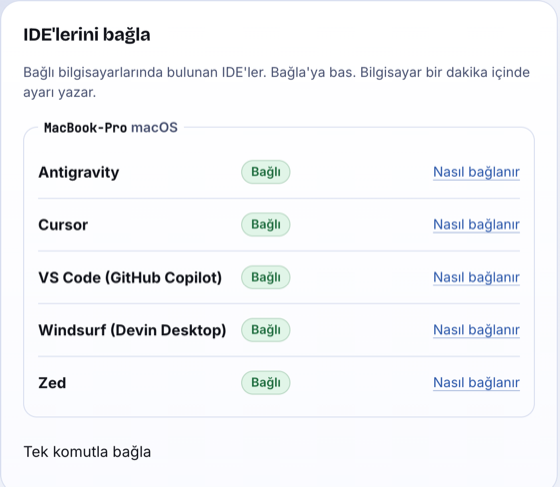
The computer writes the setting within a minute. Then open a new chat in the IDE. That is one click. Some IDEs ask once about a new server on first use. Then it is two clicks.
If the computer is not connected yet, click Connect this computer on the same screen. The command is copied to the clipboard. Paste it into a terminal. The command finds every CLI and IDE on the computer and connects them without an approval step. Two steps. Details are in Connect your computer.
If the computer is connected but the IDE is not in the list, one command does it:
crew connect --add cursorUse antigravity, vscode, windsurf or zed instead of cursor. The command keeps what is connected and only adds this tool. The browser opens the approval page. Compare the code and click Approve. Three steps: copy the command, paste it in a terminal, Approve.
With no flags, crew connect finds every CLI and IDE on the computer and offers them all in one approval. You can untick any tool on the approval page.
If the CLI is not installed, first follow Connect your computer.
How to connect Antigravity
Status: tested. Antigravity app 2.28.2 and Antigravity CLI (agy) 1.5.15, 23.11.2026.
- On a connected computer, click Connect next to Antigravity on the Connect your computer screen.
- Or run
crew connect --add antigravityin a terminal and click Approve in the browser. - Open a new conversation in Antigravity. The Crew tools are in its list.
crew adds a server named mevvcrew to ~/.gemini/config/mcp_config.json. The app and agy read the same file. The other servers in the file stay as they are. The file's first state is kept as mcp_config.json.mevvcrew-backup.
To check:
agy mcp listYou should see the line mevvcrew stdio enabled.
Tested on this computer: agy listed Crew tasks, read one and added a note to it. The note's author was the macbook-pro-antigravity agent. The app's own chat read the same task and wrote its title.
In headless mode (agy -p) Antigravity cannot ask about MCP tools and refuses them. Allow the Crew tools for that run, for example agy -p "..." --settings '{"permissions":{"allow":["mcp(mevvcrew/*)"]}}'. The setting only applies to that run.
The permission question on your phone
To send agy's permission question to your phone, start it through ACP:
crew permission on --client antigravity
crew launch antigravity
The question goes to Crew. The card says what will happen in plain words, for example "Antigravity asks to go on: will read a Crew task". Tap Approve on the phone and the tool runs. Tested on 23.11.2026.
In ACP mode Antigravity does not read its own MCP file. That is why crew launch adds the Crew server to the session itself.
How to connect Cursor
Status: tested. Cursor CLI (cursor-agent) 2026.11.22, 23.11.2026. The Cursor editor 3.31.15 reads the same file. The editor's own chat was not tried.
- On a connected computer, click Connect next to Cursor on the Connect your computer screen.
- Or run
crew connect --add cursorin a terminal and click Approve in the browser. - Open a new chat in Cursor. If Cursor asks about the new server on first use, allow it.
crew adds the mevvcrew server to ~/.cursor/mcp.json. The other servers in the file stay byte for byte the same. A copy is kept as mcp.json.mevvcrew-backup.
To check:
cursor-agent mcp listYou should see mevvcrew: ready.
Tested on this computer: cursor-agent listed Crew tasks, read one and added a note. The author was the macbook-pro-cursor agent.
In headless mode (cursor-agent -p) every MCP tool asks first. To allow only the Crew tools in one folder, write .cursor/cli.json there:
{ "permissions": { "allow": ["Mcp(mevvcrew:task_list)", "Mcp(mevvcrew:task_get)", "Mcp(mevvcrew:task_update)"], "deny": [] } }The permission question on your phone
crew permission on --client cursor
crew launch cursor
It starts as cursor-agent acp. The permission question goes to Crew, and the tool runs once you approve it on the phone. Tested on 23.11.2026.
How to connect VS Code
Status: tested. VS Code 1.147.0, GitHub Copilot agent mode (free plan), 23.11.2026.
- On a connected computer, click Connect next to VS Code on the Connect your computer screen.
- Or run
crew connect --add vscodein a terminal and click Approve in the browser. - In VS Code, open the Copilot chat with Agent mode selected. Ask Crew for something.
- Crew's read-only tools run without asking: listing tasks, reading a task and the inbox are among them. VS Code asks the first time a tool that writes is used (adding a note, updating a task). Pick Allow in this Session or Always Allow. Writing stays your choice.
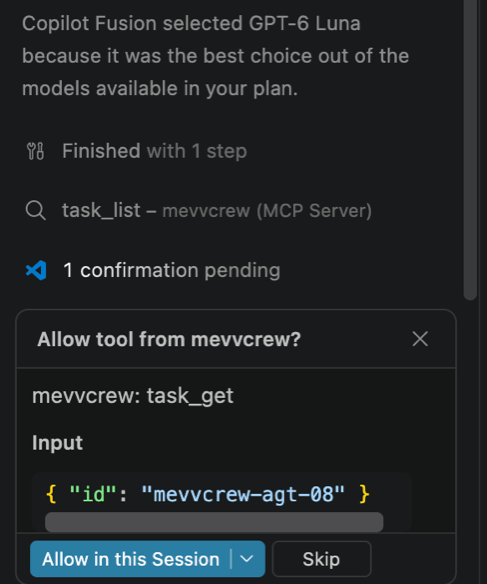
Why it does not ask: Crew announces every tool with MCP's readOnlyHint mark. Tools whose description says "Changes nothing." only read and carry the mark. VS Code opens no confirmation for a tool with that mark. This was read from VS Code's source code (mcpLanguageModelToolContribution.ts). VS Code's documentation has no field in mcp.json for tool approval, so crew writes no approval setting there. VS Code's chat.tools.global.autoApprove setting allows every tool. crew never touches it.
crew writes the user profile's mcp.json, the same file code --add-mcp writes: ~/Library/Application Support/Code/User/mcp.json on macOS, ~/.config/Code/User/mcp.json on Linux, %APPDATA%\Code\User\mcp.json on Windows. The key is servers.mevvcrew with type stdio. Comments and other servers in the file stay.
Tested on this computer: Copilot listed Crew tasks, read one and added a note. The author was the macbook-pro-vscode agent. On the first try the server hit a network error while starting and Copilot said the tools were not available. The second try connected. If you see that error, send the request once more.
Copilot needs a GitHub sign-in. The free plan is enough.
Source: VS Code MCP configuration.
How to connect Windsurf
Status: tested. Devin Desktop 3.14.30833 (free plan), Devin Local agent, 23.11.2026. Windsurf is now called Devin Desktop (02.06.2026).
- On a connected computer, click Connect in the Devin Desktop (Windsurf) row on the Connect your computer screen.
- Or run
crew connect --add windsurfin a terminal and click Approve in the browser. - In Devin Desktop, start a new session, pick the folder and ask Devin Local for something from Crew.
crew writes ~/.config/devin/mcp_config.json, on Windows %APPDATA%\devin\mcp_config.json. The key is mcpServers.mevvcrew. The app's own code reads this folder too. The old Windsurf file ~/.codeium/windsurf/mcp_config.json is only read for an import, so crew does not write it.
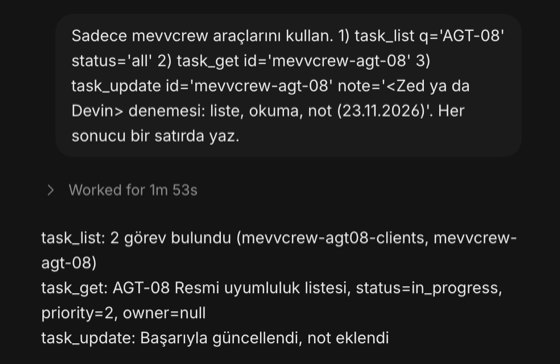
Tested on this computer: one Connect click in the panel, and the computer wrote the setting within a minute. Devin listed Crew tasks, read one and added a note. The author was the macbook-pro-windsurf agent.
Devin Desktop needs a Devin sign-in. The free plan is enough.
Source: Devin MCP configuration.
How to connect Zed
Status: tested. Zed 1.29.3 (free plan), with Codex as the external agent, 23.11.2026.
- On a connected computer, click Connect next to Zed on the Connect your computer screen.
- Or run
crew connect --add zedin a terminal and click Approve in the browser. - Open the folder in Zed. If Zed asks, click Trust and Continue.
- Open the agent panel and pick Codex as the agent. Ask Crew for something. If Zed asks, allow the Crew tool.
The folder trust question is Zed's own and does not come from Crew. Zed asks once per folder and remembers the answer. crew does not answer it ahead of time. Per Zed's documentation the only way to preset it is session.trust_all_worktrees: true. That setting trusts every folder, and Zed does not recommend it. There is no setting for one folder. The Crew server crew adds is a global MCP server, and Zed starts global servers whatever the folder trust is. So the Crew tools work in an untrusted folder too.
crew adds context_servers.mevvcrew to ~/.config/zed/settings.json, on Windows %APPDATA%\Zed\settings.json. The comments in Zed's settings file stay as they are. Zed passes this server to an external agent too.
Tested on this computer: one Connect click in the panel, and the computer wrote the setting within a minute. Codex, inside Zed, listed Crew tasks, read one and added a note. The note's author was the macbook-pro-zed agent, so Codex used the server Zed gave it.
On the free plan Zed's own agent needs your own API key or the Pro trial. External agents (Codex, Claude Agent) are free. Claude Agent uses its own Claude Code profile. Keep that in mind if you have several.
Sources: Zed MCP, Zed external agents, Zed worktree trust.
Crew-Gated Browser MCP
Add approval-gated browser tools to your connected IDEs and CLIs with one command:
crew browser-mcp install allThis wires the local browser MCP server into Antigravity, Claude Code, Cursor, Codex, Windsurf, Zed and Crush. Agents get 7 MCP tools: navigate, snapshot, click, fill, upload_files, screenshot and status.
- Before file uploads, form submits or opening a new origin, a Crew approval card lands on your phone and panel.
- Trusted sites can be granted per-site
allow_alwayspermission right from the approval card.
How many clicks
The numbers were counted again after the 23.11.2026 change.
- New computer, every CLI and IDE: Connect this computer, paste in a terminal. Two steps. If the browser does not write to the clipboard, Copy comes in between: three steps.
- Connected computer, IDE in the list: Connect. One click.
- Antigravity: Connect. One click.
- Cursor: Connect. Two clicks if Cursor asks about the new server on first use.
- VS Code: Connect. Crew's read-only tools do not ask, so reading is one click. Adding a note uses a tool that writes, which asks once per session: two clicks. With Always Allow it does not ask in later sessions either.
- Windsurf (Devin Desktop): Connect. One click.
- Zed: Connect, then Codex's tool permission. Two clicks. If the folder was never trusted, Zed's folder trust is asked too: three clicks.
- Connected computer, an IDE not in the list: copy the command, paste it in a terminal, Approve. Three steps.
- Signing in to the IDE's own account is not counted. Cursor needs a Cursor account, VS Code a GitHub account, Devin Desktop a Devin account.
Removing the connection
crew disconnect undoes every line crew wrote. The files go back byte for byte and the backup file is deleted. An IDE you connected from the panel is removed by removing its binding on Settings → Work profile.
